

Printer Says Offline But Is Connected — Real Fix (2026)
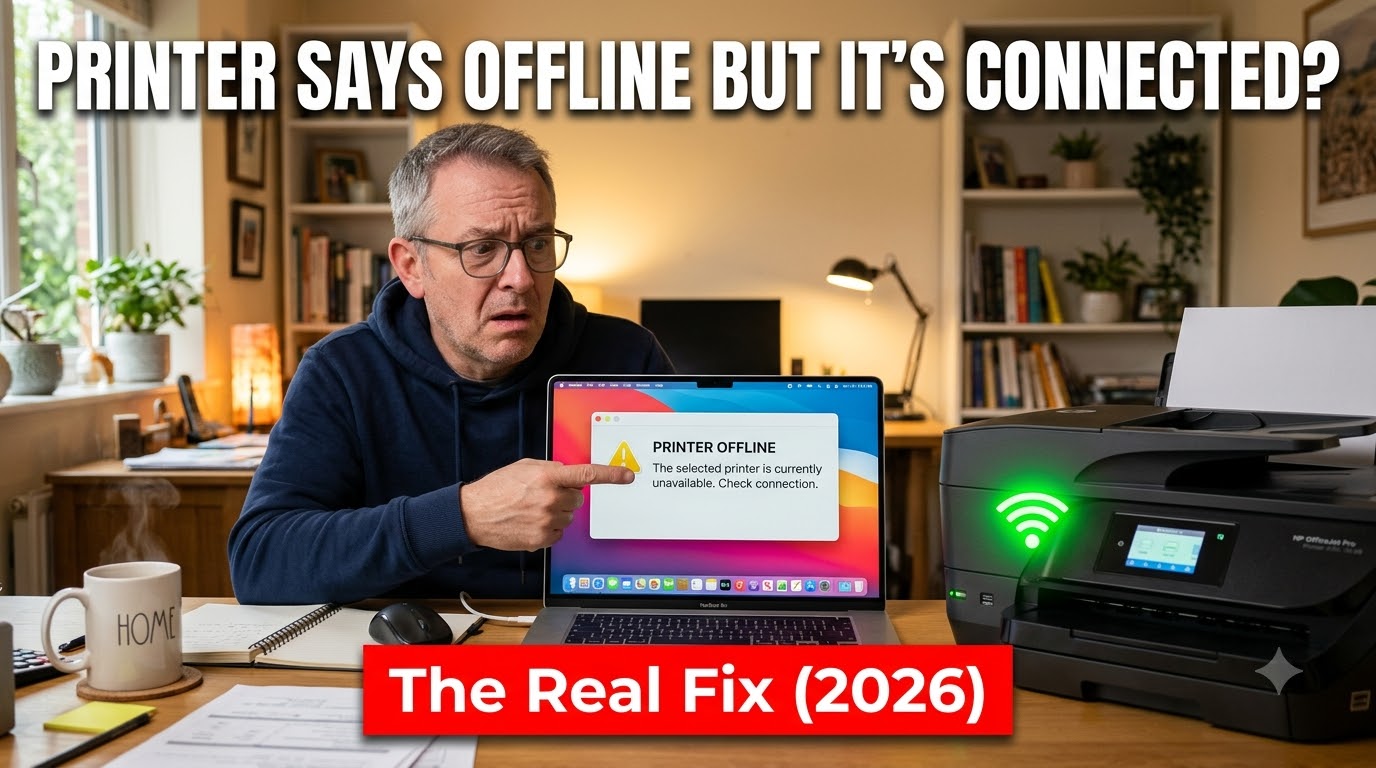
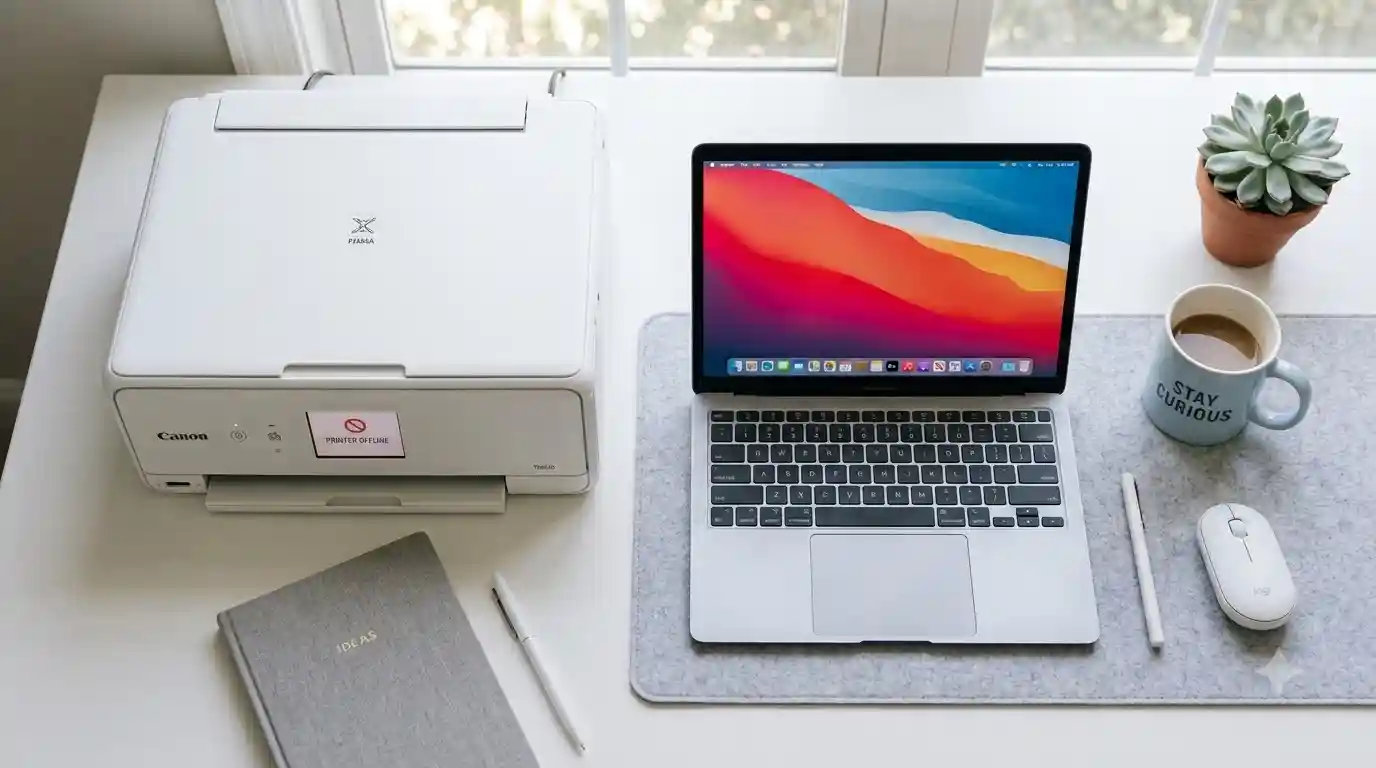
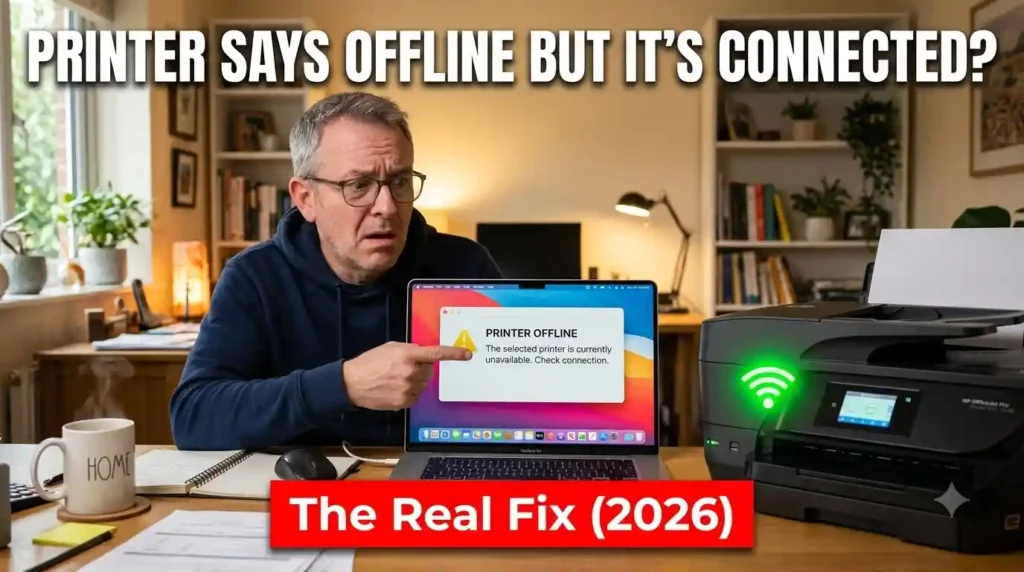
You check your printer’s screen — it’s connected to WiFi. You check your router — everything looks fine. But your computer still says “Printer Offline.” This is one of the most confusing printer errors because the printer is online, yet Windows or Mac refuses to acknowledge it.
The good news: this isn’t a printer hardware problem. It’s almost always a communication mismatch between your computer and the printer’s network status — and it has a real, repeatable fix. Here’s exactly what’s going on and how to solve it.
Why This Happens (The Real Cause)
“Printer Offline” almost never means your printer actually lost its network connection. In most cases, one of these is happening:
- Your computer is trying to print to an old IP address the printer no longer uses
- Windows has the printer set to “Use Printer Offline” mode
- The printer is in sleep/power-save mode and isn’t responding to the ping
- A security or firewall setting is blocking print communication
- The printer and computer are on different network bands (2.4GHz vs 5GHz) after a router update
Once you know which of these it is, the fix takes minutes.
Fix 1: Turn Off “Use Printer Offline” Mode (Windows)
Windows sometimes manually marks a printer as offline even when it’s reachable.
- Open Settings > Bluetooth & Devices > Printers & Scanners.
- Click your printer, then Open Print Queue.
- Click the Printer menu at the top.
- If “Use Printer Offline” has a checkmark next to it, click it to uncheck.
This single step resolves the issue for a large share of Windows users.
Fix 2: Set the Printer as Default and Remove Duplicate Entries
Router resets, driver updates, and printer swaps often leave behind duplicate printer entries in Windows or Mac — one working, one stuck offline.
- Windows: Go to Printers & Scanners, remove any duplicate or grayed-out versions of your printer, keep only one, and set it as default.
- Mac: Go to System Settings > Printers & Scanners, remove duplicates with the minus (–) button, then re-add the printer with the plus (+) button.
Printing to the wrong duplicate entry is one of the most common causes of a “connected but offline” printer.
Fix 3: Wake the Printer from Sleep/Power-Save Mode
Many printers enter a deep sleep mode to save energy, and some models don’t respond fast enough to a print job’s initial “are you there?” signal — Windows then labels them offline.
- Press any button on the printer’s control panel to wake it, then try printing again.
- In the printer’s settings menu, increase the sleep/power-save timer (e.g., from 5 minutes to 30 minutes) so this happens less often.
Fix 4: Confirm the Printer’s IP Address Matches What Your Computer Is Using
This is the #1 real cause of “offline but connected” errors.
- On the printer touchscreen, go to Network Settings and note the current IP address.
- On your computer, go to Printers & Scanners > [Your Printer] > Printer Properties > Ports.
- Check if the IP address listed matches the printer’s current IP.
If they don’t match, remove the printer and re-add it so Windows/Mac detects the correct, current address — this is especially common after a router restart or DHCP refresh.
Fix 5: Make Sure the Printer and Computer Are on the Same Network Band
Some routers broadcast two networks — a 2.4GHz and a 5GHz band — often with the same name. If your printer connects to one band and your computer is on the other, they technically share a network name but can’t always communicate reliably.
- Check the printer’s WiFi settings screen to confirm which band it’s connected to.
- If possible, connect both your printer and computer to the same band, or temporarily rename the bands differently to control which device joins which.
Fix 6: Temporarily Disable Firewall/Security Software to Test
Some antivirus or firewall software blocks the printer communication ports (usually port 9100 or 631) without notifying you.
- Temporarily disable your firewall or antivirus.
- Try printing again.
- If it works, your security software is the cause — add the printer as an exception/allowed device instead of leaving protection off.
Still Showing Offline?
If you’ve worked through all six fixes and your printer still won’t come back online, the cause is likely a deeper network conflict, driver corruption, or router configuration issue specific to your setup — the kind of thing that’s genuinely faster to fix with an expert looking at your screen than trial-and-error on your own.
Our certified technicians connect remotely, diagnose the real cause, and get your printer back online — usually in one session.
 Book a Remote Printer Support Session — we support HP, Canon, Epson, Brother, and Kyocera printers.
FAQ
Why does my printer say offline if it’s connected to WiFi?
Because “offline” is a status set by your computer, not your printer — it usually means Windows or Mac is trying to reach an outdated IP address or has the printer manually set to offline mode.
Will restarting my computer fix a printer offline error?
Sometimes, but it’s a temporary fix. The underlying cause (duplicate printer entry, wrong IP, sleep mode) usually needs to be corrected directly.
Does this happen more after a router reset or firmware update?
Yes — both events commonly change the printer’s IP address or network path, which triggers this exact error.
Can a firewall really cause a printer offline error?
Yes. Print communication uses specific network ports, and some antivirus/firewall software silently blocks them.



Leave a Comment